How to export documents for your accountant
ScanTicket allows you to easily export all your receipts and invoices to send them to your accountant. Here's how to do it in a few simple steps.
Method 1: Export all your receipts to XLS or CSV
This method is ideal for sending a complete summary of your expenses to your accountant.
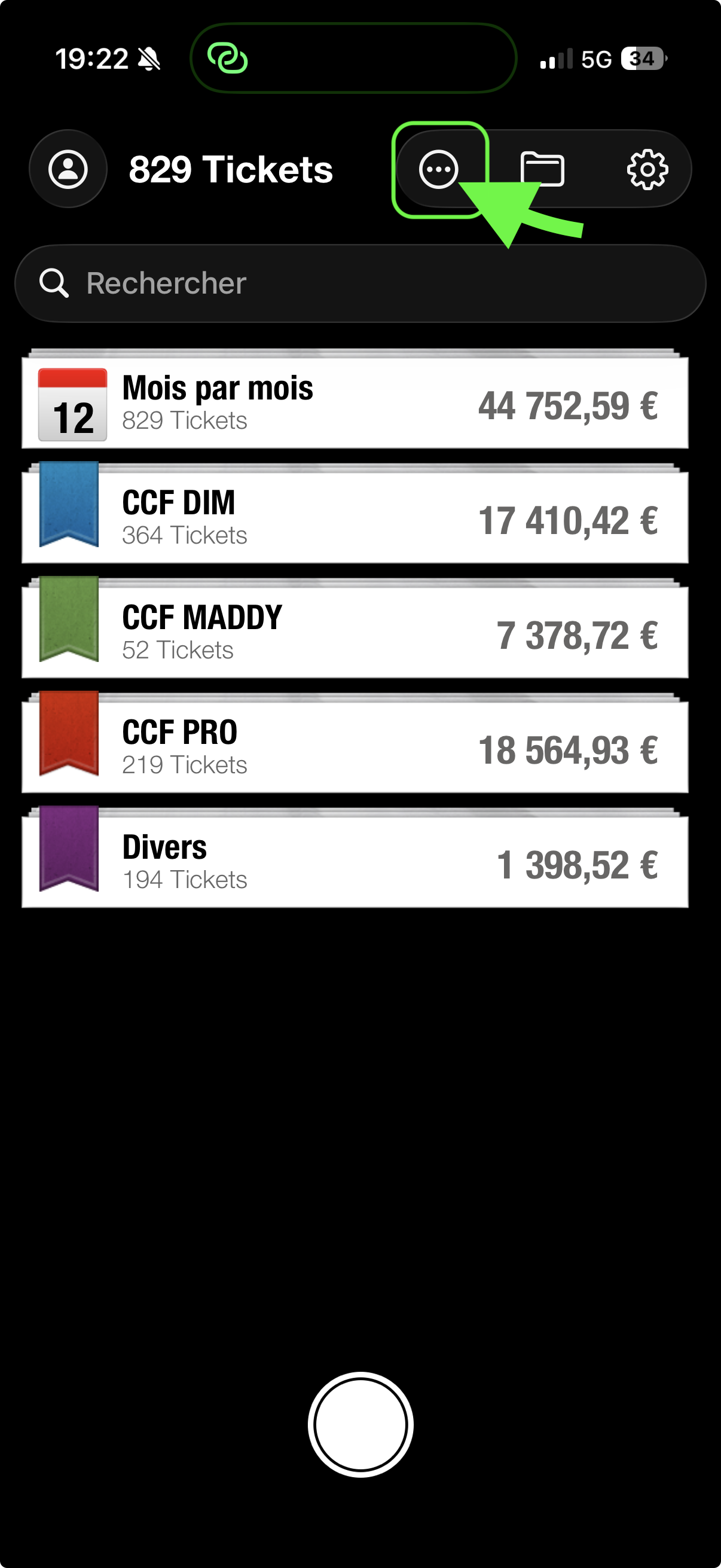
Step 1: Access the Options menu
From the main screen of the app, tap the "..." (three dots) button located at the top of the screen.
Step 2: Choose the export format
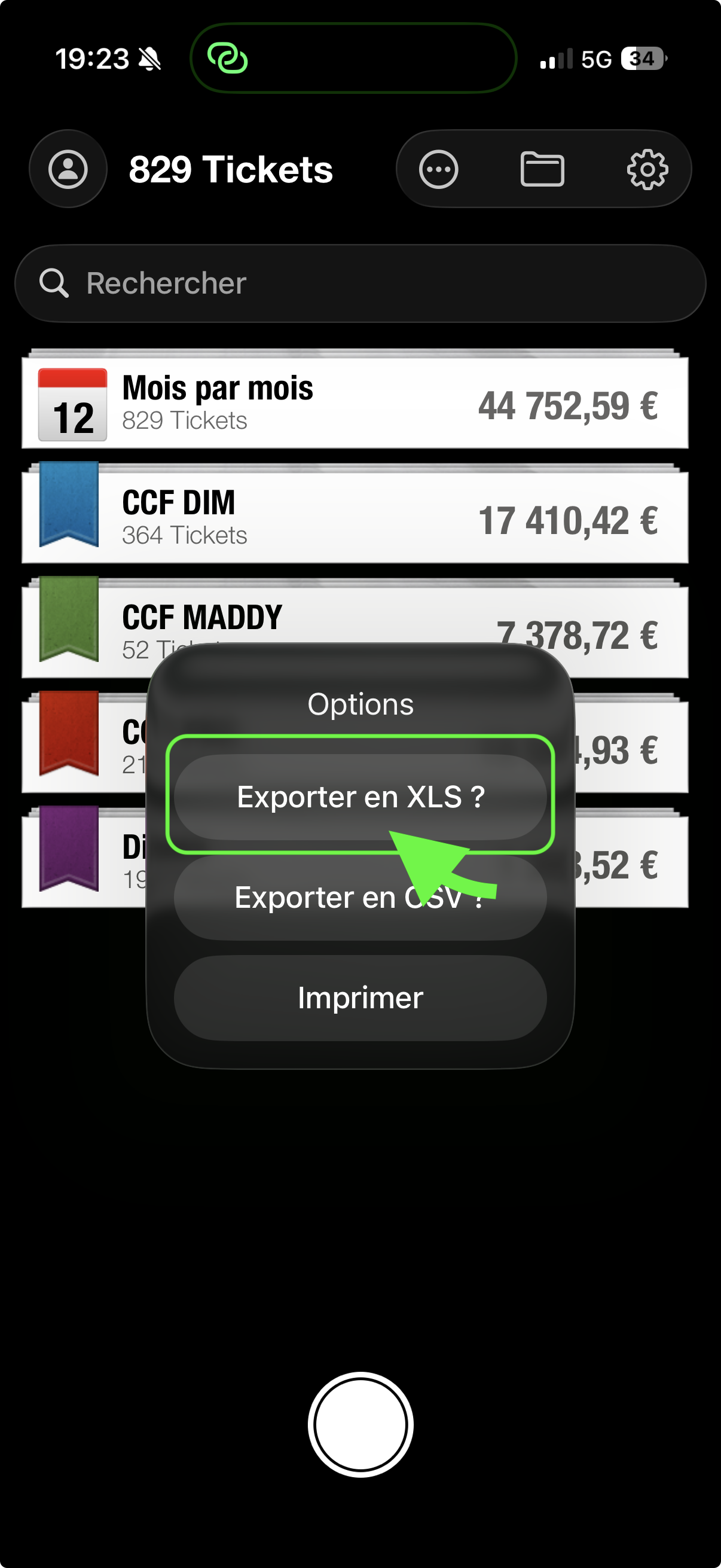
A menu appears with several options:
- Export to XLS: Excel format, ideal for your accountant
- Export to CSV: Universal format compatible with all spreadsheets
- Print: For a paper version
Select "Export to XLS" to generate an Excel file containing all your receipts.
Step 3: Send the file by email
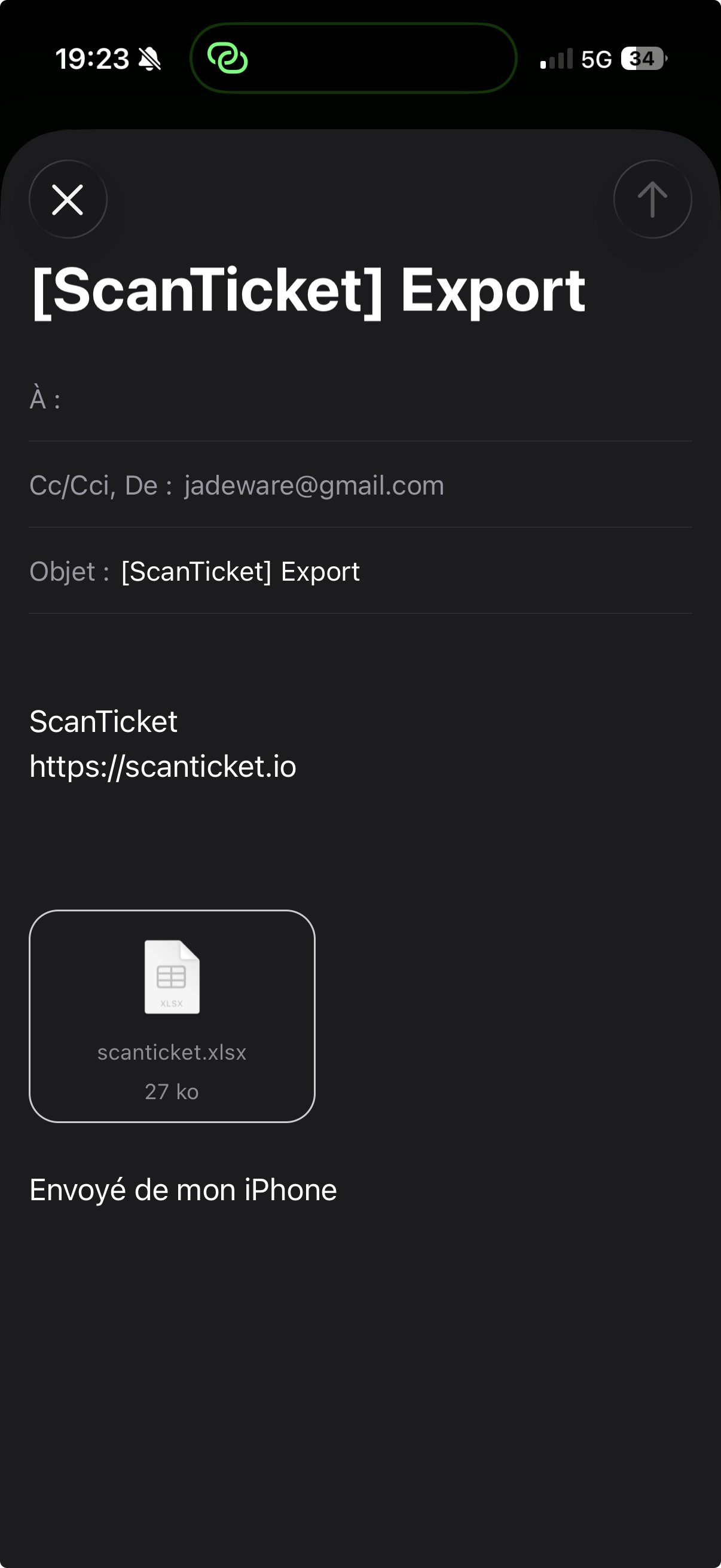
The app automatically opens your email client with the scanticket.xlsx file attached. All you have to do is enter your accountant's email address and send!
Method 2: Export an individual receipt
You can also export a specific receipt with its image.
Step 1: Open the receipt
Select the receipt you want to export, then long-press on it or use the menu to display options.
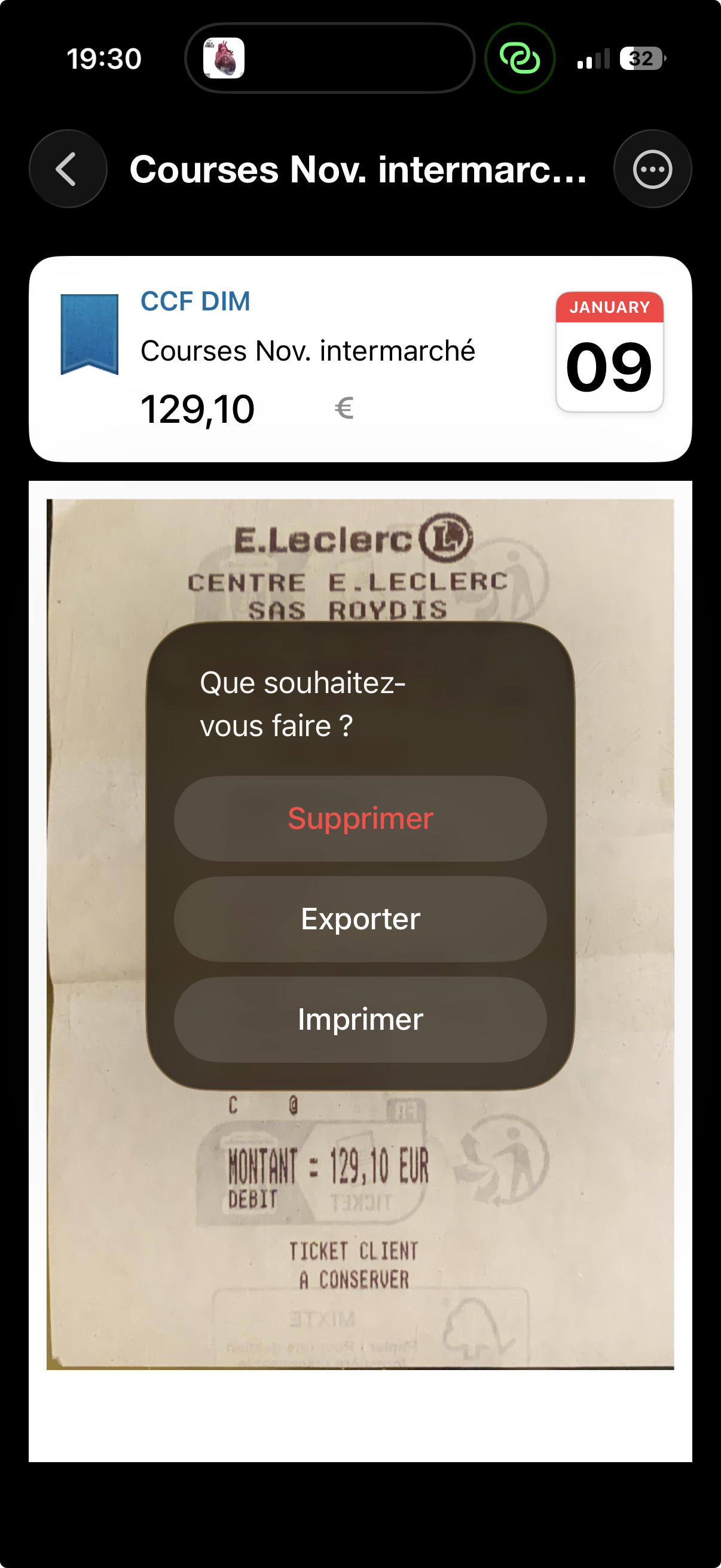
Step 2: Select "Export"
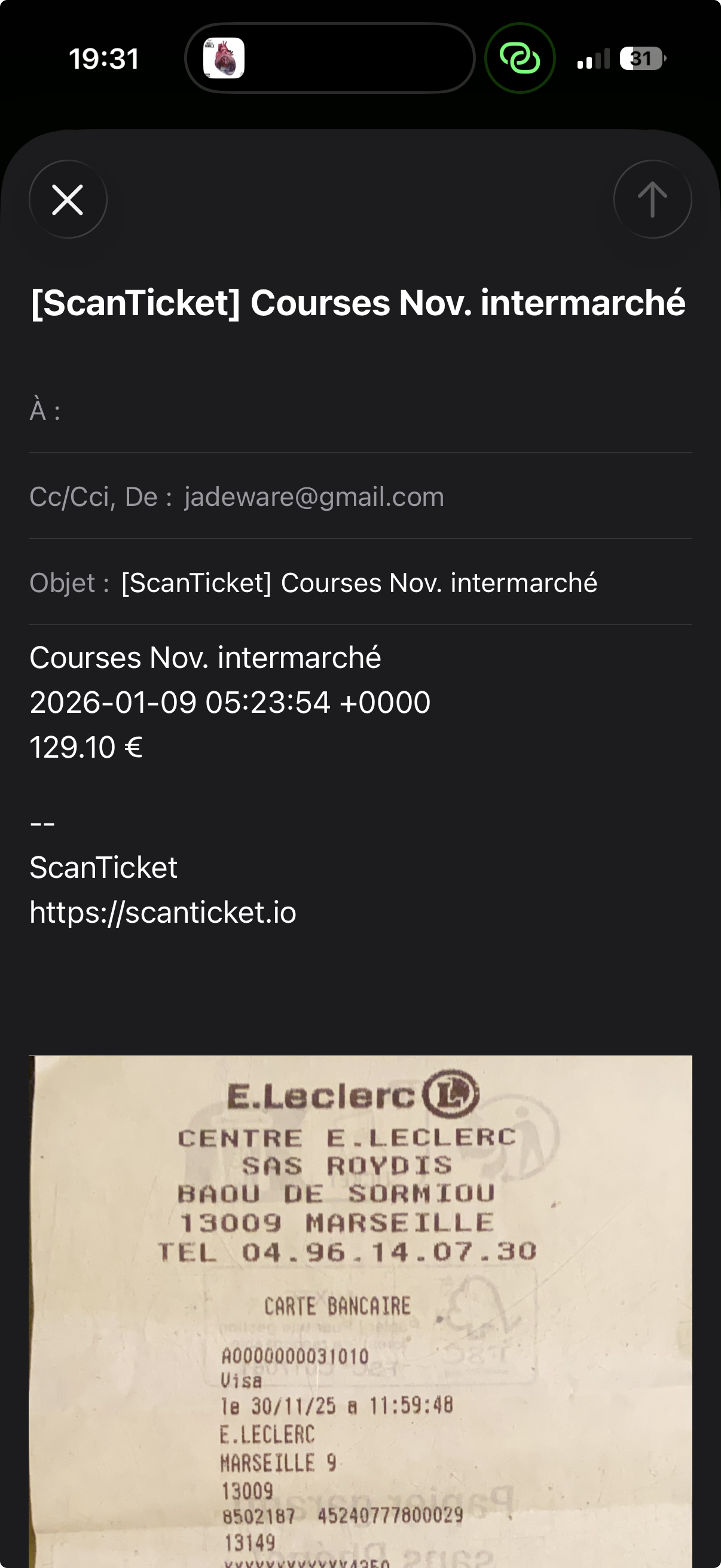
Choose the "Export" option from the menu. The app will prepare an email with the receipt information and the image attached.
Tips for your accountant
- Monthly export: Remember to export your receipts every month to make accounting easier
- XLS format: Excel format is generally preferred by accountants as it allows easy data manipulation
- Folder organization: Use folders in ScanTicket to separate your business and personal expenses before exporting