Automatic invoice import from iCloud Drive
Drop a PDF invoice or an image into a dedicated iCloud Drive folder: ScanTicket imports it, runs OCR and categorises it automatically. No more manual transfers or scans, file by file.
✨ Why you'll love it
- Zero manual work: drop the file, the app does the rest
- Mac and iPhone friendly: a single shared folder via iCloud Drive
- Batch ready: drop 50 invoices at once, ScanTicket processes them in queue
- Automatic OCR: merchant, date, total, subtotal and VAT detected
- Smart categories: Walmart → Groceries, Uber → Transport, etc.
- No duplicates: a file already imported is never processed twice
🔄 How it works
On install, ScanTicket creates a ScanTicket > Imports folder in your iCloud Drive. Anything you drop in this folder is processed automatically.
- Drop a PDF or an image into the ScanTicket / Imports folder (from iPhone via Files, or from Mac via Finder > iCloud Drive)
- Open the ScanTicket app: the folder is scanned automatically
- Each new file is imported into the app and shows up in your list of receipts
- For multi-page PDFs, all pages are stitched into a single vertical image (you see the whole invoice)
- OCR extracts merchant, date, total, subtotal and VAT
- The category is guessed automatically when possible
- When done, a notification appears: "3 invoice(s) imported"
Deduplication uses an SHA-256 fingerprint: if you re-drop the same file, it's silently skipped.
📂 Where to find the folder
The folder is shared across all your devices through iCloud Drive.
On iPhone and iPad
Open the Files app > Browse tab > iCloud Drive > ScanTicket. You'll find the Imports subfolder there.
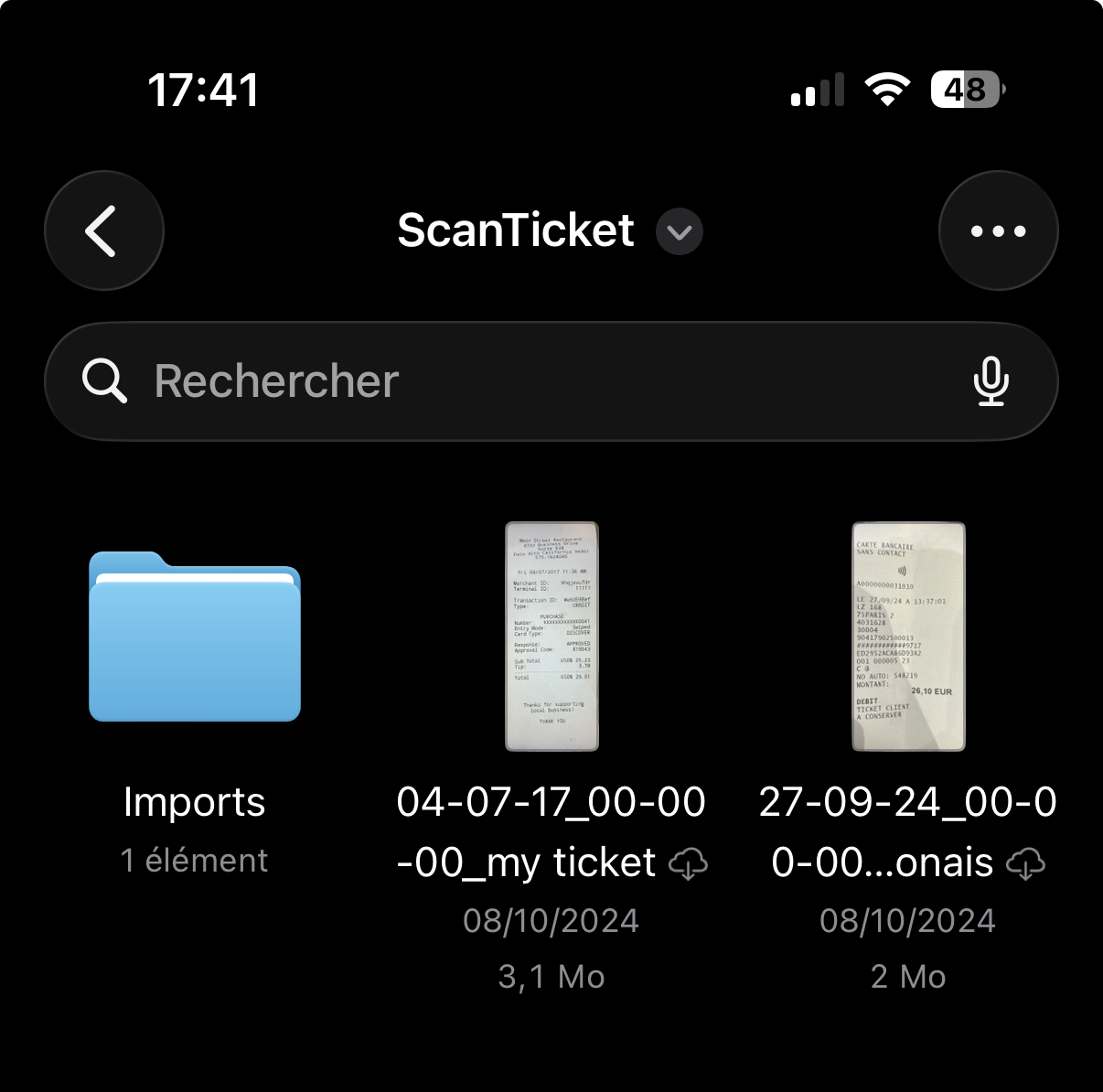
On Mac
Open Finder > sidebar iCloud Drive > ScanTicket > Imports. You can drag and drop PDFs or images straight from your inbox or your scanner.
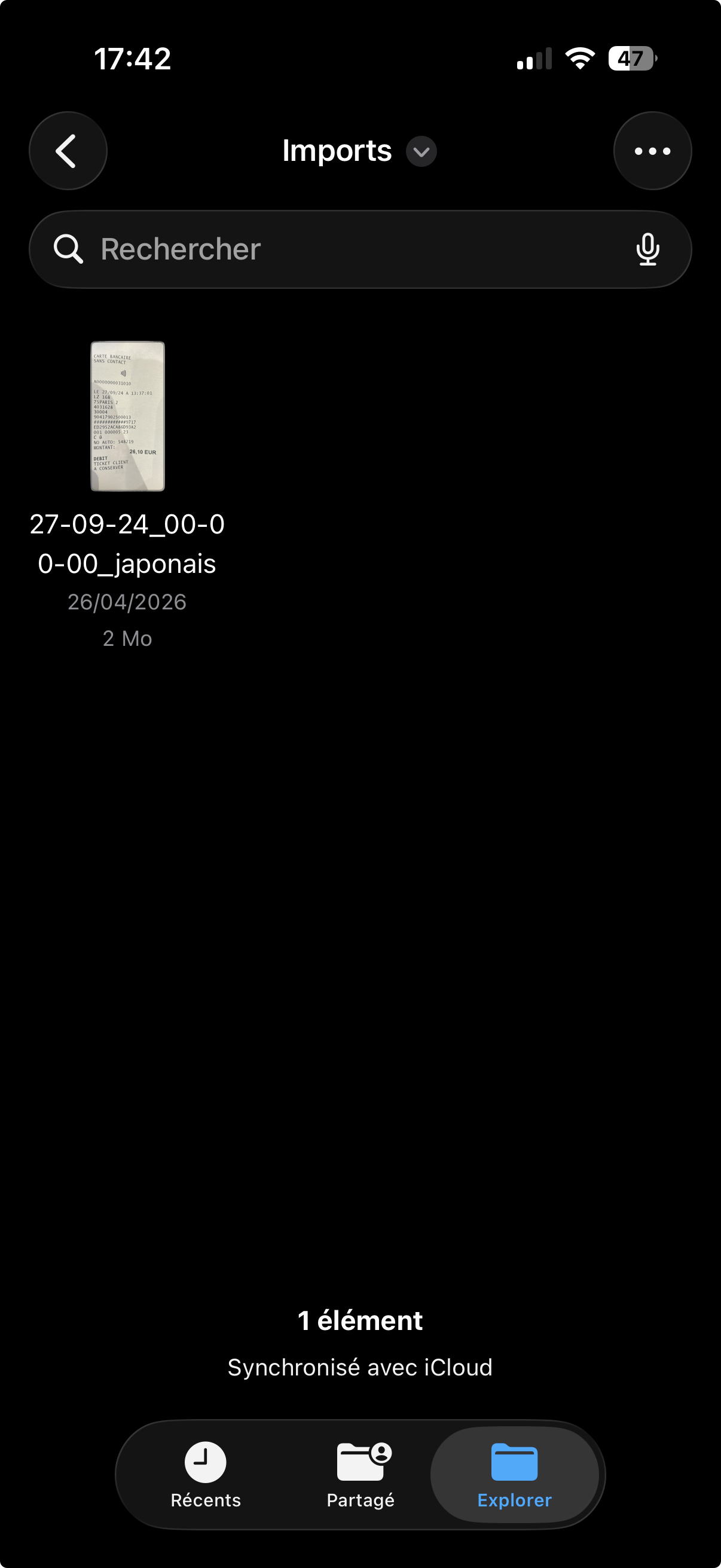
Inside the app, in Settings > iCloud Import, the button "Open folder in Files" jumps you straight there.
⚙️ Turn import on or off
iCloud import is on by default. To pause it:
- Open ScanTicket > Settings (gear icon, top-right)
- iCloud Import section
- Flip the toggle off
The folder stays in place — files dropped there simply won't be imported until you turn the option back on.
📄 Supported formats
- PDF — multi-page invoices, accounting exports
- JPG / JPEG — receipt photos
- PNG — receipt screenshots
- HEIC — native format for recent iPhone photos
❓ Frequently asked questions
Are my files deleted from the folder after import?
No. Your original files stay untouched in the ScanTicket / Imports folder. You can delete them yourself whenever you want — ScanTicket will not reprocess them.
What happens if I drop the same file twice?
Nothing. ScanTicket computes an SHA-256 fingerprint for each file and skips anything already imported, even under a different filename.
Is OCR done locally or in the cloud?
OCR runs locally on your iPhone using Apple's Vision framework. No file is sent to our servers for analysis.
What if I don't have iCloud Drive enabled?
iCloud import requires iCloud Drive enabled on the device (iOS Settings > [Your name] > iCloud > iCloud Drive). Without it, the option stays off.
Does it use extra iCloud storage?
The only storage used is for your original files in the Imports folder — typically a few MB per invoice. Images processed by the app are stored separately in your ScanTicket account.
Can I drag files from an email?
Yes. On iPhone, use "Share > Save to Files > iCloud Drive > ScanTicket > Imports". On Mac, drag the attachment straight into the folder from Finder.
💡 Going further
iCloud import pairs nicely with the rest of ScanTicket: export to your accountant, VAT/Subtotal/Total OCR detection, or Dropbox / Google Drive sync.
Got a question? Reach us from Settings > Contact support inside the app.